
Ready to start putting together a potential class schedule?
For this process, I recommend having 3 tabs open on your computer: Degree Audit Report, Class Planner, and Find a Class and Enroll
You’ll need to check your Degree Audit Report beforehand so you know which classes you should be taking to fulfill requirements! Click here if you’re a first year or here if you’re a transfer for a Degree Audit Report walkthrough guide
USING CLASS PLANNER + FIND A CLASS AND ENROLL

1. Open “CLASS PLANNER” and “FIND A CLASS AND ENROLL” in two separate tabs

(This is just an example of what your plan will look like as you add potential classes!)

2. Below the calendar, you’ll see “Add Class to Plan” and “Class Plan”. You can use “Add Class to Plan” to add a class you want into your class plan. It will show up under “Class Plan” and on your calendar! We’ll get to this a little later.

3. We’re switching over to the “FIND A CLASS AND ENROLL” tab I asked you to open. This is where we will be finding our classes. You can leave the search criteria as is with “Subject Area” – for example, typing in POL SCI and pressing GO will show you all the available courses under Political Science for this Fall quarter.
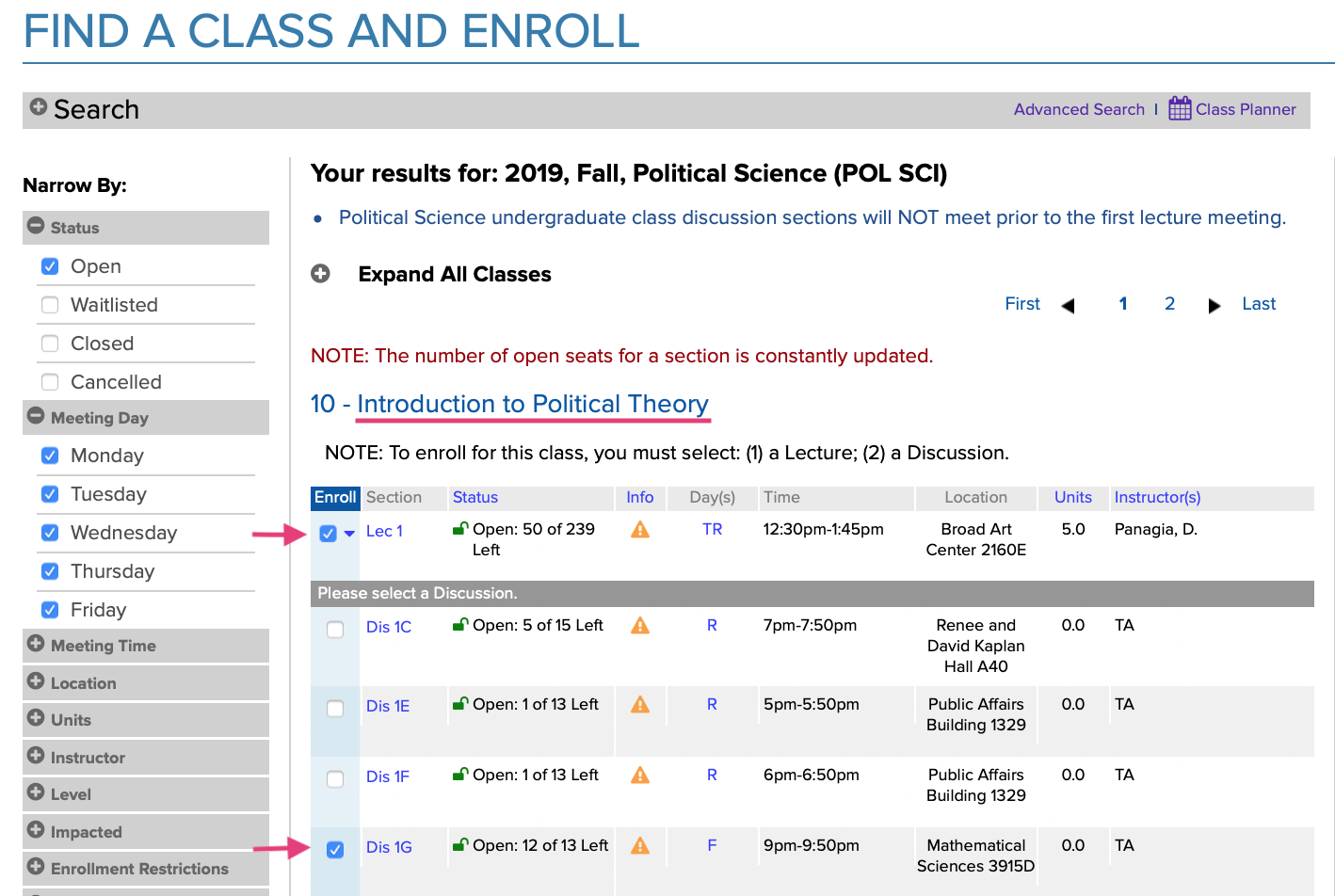
4. This is the result if we search for POL SCI in the subject area. If you click on a lecture (ex: 10 – Introduction to Political Theory), an information section will pop up letting you know how many seats the class has available, what days/times the class takes place, the location, instructor, units, etc.
In the “NOTE:” section, it will let you know if there’s also a discussion section required with the lecture. Most courses will have one. Once you click on the box next to the lecture you want to add to your plan, a list of available discussion sections (and their own times) will pop up.

For EVERY class you are considering, make sure to click on the orange info button. You’ll be able to see what restrictions the class enforces and what final exam date the class has.
For example, POL SCI 10 says it’s restricted to “New students only”. That’s us, so it’s okay! For the final exam date, it says “none listed” and that’s good too! Usually when a class says that, it means there’s a final paper or project rather than a traditional in class exam.
When we’re looking for classes to add to our schedule (3 classes + alternatives to each of the 3 classes), you need to make sure your class’ final exam dates are DIFFERENT.
(ex: Final exam dates Mon, Tues, Fri = good; Mon, Thurs, Mon = bad). If you find a class you’re interested but it has the same final exam date as one of your other classes, just add it as an alternative so you can use it as a back up in case that other class doesn’t work out


5. Back to the class planner tab! When you find a class you want to add, go ahead and type it in / select the lecture and discussion times that you like and then click “Add class to plan”. This class/discussion should now show up on the calendar part and under “Class plan”. And we keep going on with this process until you reach 3 top classes for your schedule and then 3 backup classes for each one!
Things to keep in mind
- Only three classes allowed + fiat lux / university studies if wanted. One can be major related, like a prep course, and the other two can be focused on fulfulling GEs and maybe a prep course for another major/minor you may be interested in. You cannot have all three major related courses. Make sure these courses are lower division (class numbers 1-99).
- Your schedule must have no conflicting final exam dates! So if you get Class 1, Class 2, but your Class 3 is taken, does your backup class for Class 3 work with your other class’ final exam dates? Keep checking!
- Always click on the orange triangle to check for restrictions under the orange bar. If it says restricted for a certain major that you’re NOT, then you can’t enroll. If it says PTE or instructor consent required, you can’t enroll. If it says you needed to have taken some pre-requisite course that you’ve never taken, you can’t enroll!
- Adding classes/alternates to your class planner does not automatically enroll you! You’re just coming up with a plan in advance and seeing how classes will look in your schedule so you’re prepared for enrollment!
(Coming soon: A link to how enrollment works!)
Adding Alternate classes / Backups

It works the same way with adding any class to your class planner, except it will ask you if you want to add it as a new class or as an alternate.
For example, if I’m trying to add Sociol 1, it asks me if I want to add it as another class OR as an alternate. You add it to your planner the same way!

